
Configure Agent Behavior
Use managed configuration when the same server binary should host multiple agent profiles, switch models, tune prompts, adjust permissions, or change plugin behavior without rebuilding Rust code.
Purpose
Section titled “Purpose”Configuration is for behavior that should change after the runtime capability already exists in code. This is better than rebuilding for every prompt, tool filter, or permission tweak because operators can validate, preview, save, and restore behavior without changing the executable boundary.
This page is UI first. The Admin Console is the safest way to make one change, validate it, preview behavior, and save the next runtime snapshot. Use API references when you need to automate the same workflow.
Before you start
Section titled “Before you start”- Runtime capabilities already exist in code: tools, providers, stores, and plugins are registered by the server.
- The Admin Console can connect to the server and shows Connected in the topbar.
- At least one provider and model are configured if you want live model calls.
Start here if needed: Use the Admin Console.
UI-first tuning map
Section titled “UI-first tuning map”Open Agents, then create a new agent or open an existing one.
| Editor area | Tune here | Use when |
|---|---|---|
| Basics | Model, max rounds, reasoning effort, system prompt | You want to change personality, instruction style, model, or run bounds. |
| Tools | Allowed tools, excluded tools, source filters | You want to expose or hide capabilities without changing code. |
| Plugins | Plugin enablement and plugin-backed sections | You want permission, reminder, generative UI, deferred tools, or other plugin behavior. |
| Delegates | Agent handoff targets | This agent should be able to pass control to other registered agents. |
| Advanced | Raw JSON preview | You need to review the exact spec before saving. |
| History | Prior revisions and restore actions | You need to compare or roll back a saved change. |
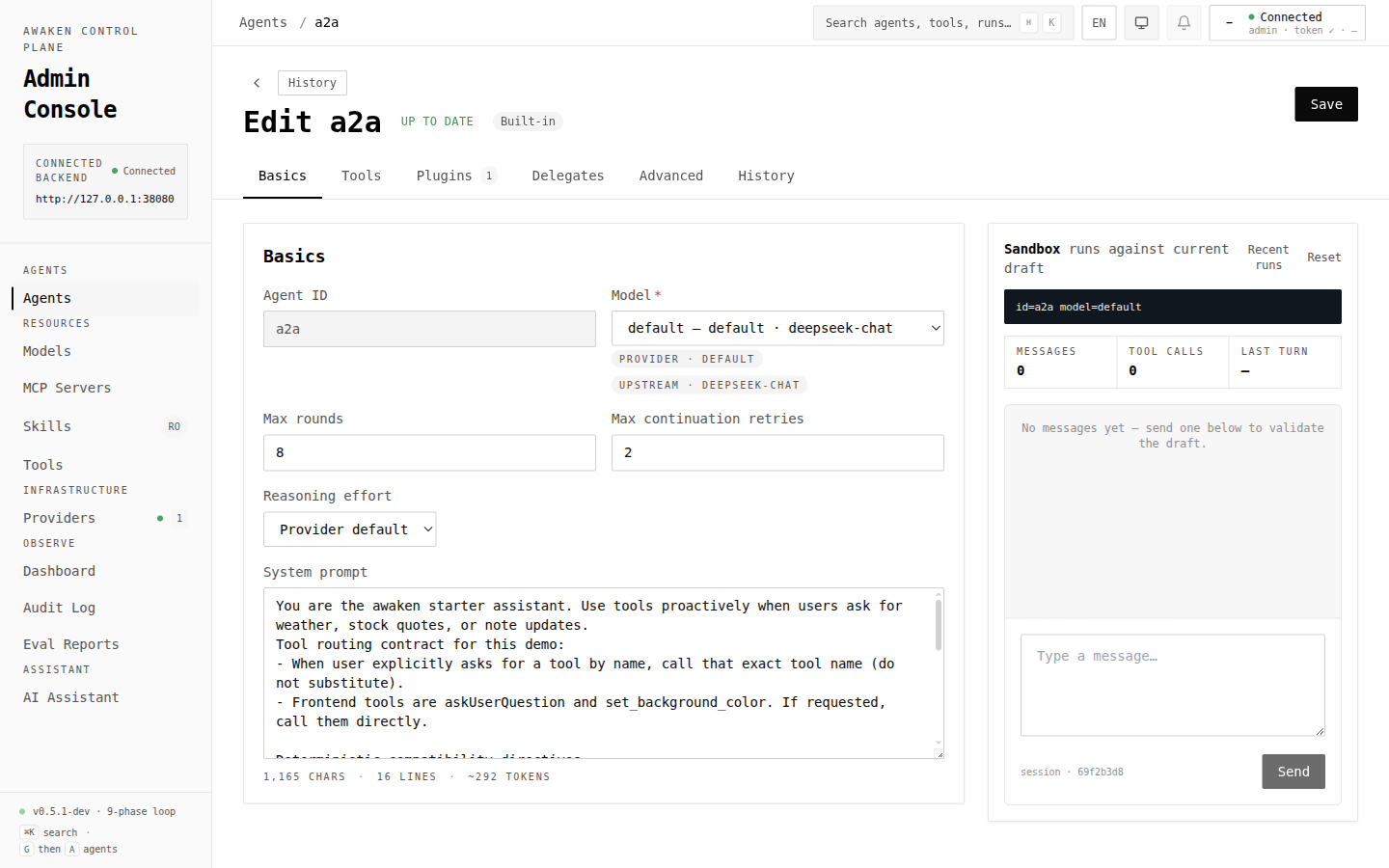
Safe edit loop
Section titled “Safe edit loop”- Change one behavior dimension at a time.
- Click Validate. Fix validation errors before previewing.
- Use the right-side preview chat with a representative prompt.
- Save only after the preview behaves as expected.
- Run a real task or eval fixture.
- If behavior regresses, use History → Restore and save a known-good version.
Edits apply to new runs after saving. Existing running work keeps the spec it already resolved.
Common tuning tasks
Section titled “Common tuning tasks”Change prompt or model
Section titled “Change prompt or model”Use Basics:
- Pick the target model id.
- Edit the system prompt.
- Adjust max rounds or reasoning effort if the model needs different bounds.
- Validate, preview, then save.
Pair with Hot-Tune Prompts when the prompt is the main thing you are changing.
Narrow the tool catalog
Section titled “Narrow the tool catalog”Use Tools:
- Choose All tools for broad access or Custom selection for explicit control.
- Use source filters to find built-in, plugin, or MCP tools.
- Add sensitive tools to the excluded list, or pair them with permission rules.
- Validate and preview a task that should and should not call the tool.
Add human approval
Section titled “Add human approval”Use Plugins and the permission editor:
- Enable the permission plugin for the agent.
- Add Ask/Allow/Deny rules for sensitive tool names and arguments.
- Validate, save, then run a scenario that should suspend for review.
See Enable Tool Permission HITL.
Add reminders or deferred tools
Section titled “Add reminders or deferred tools”Use Plugins:
- Reminder rules inject context after matching tool calls.
- Deferred-tool policy keeps large tool schemas out of the prompt until they are likely to be needed.
Change one plugin section at a time, then preview with a scenario that exercises that plugin.
Delegate to another agent
Section titled “Delegate to another agent”Use Delegates:
- Select the agents this one is allowed to hand off to.
- Make sure each delegate has its own model/tools configured.
- Preview a scenario where handoff should happen.
See Use Agent Handoff and Multi-Agent Patterns.
Bound long-running behavior
Section titled “Bound long-running behavior”Use Basics and stop-policy settings where available:
- Lower max rounds to prevent unbounded loops.
- Configure explicit stop policies for token, elapsed time, error frequency, or round count.
- Pair with evals to ensure the bounds do not cut off valid work.
When to use API instead
Section titled “When to use API instead”Use /v1/config/* directly when the change is generated by CI, deployment
automation, migration scripts, or internal tooling. Keep the same workflow:
validate the draft, write it, then run/evaluate behavior.
Related references:
- HTTP API — endpoint shapes.
- Config —
AgentSpec, plugin sections, model/provider config. - Admin Console surface inventory — UI-to-API mapping.
Compatibility rules
Section titled “Compatibility rules”Safe changes for new runs:
- Prompt text and tool descriptions.
- Model id, reasoning effort, max rounds, and stop policies.
- Allowed/excluded tools and delegates.
- Plugin config sections such as permission, reminder, generative UI, and deferred-tool policy.
Be careful with:
- Removing tools or plugins that active workflows expect.
- Renaming ids used by clients, delegates, eval datasets, or saved examples.
- Changing provider credentials without testing the provider first.