
Use the Admin Console
The Admin Console is the main tuning and operations UI for an Awaken server. Use it after the runtime capabilities exist in code: configure providers and models, create agents, tune prompts and tool descriptions, assign MCP tools, activate skills and delegates, inspect traces, capture datasets, and run evals from the browser.
For the technical inventory of every screen and widget, see the Admin Console surface inventory.
Prerequisites
Section titled “Prerequisites”- A running
awaken-serverreachable from your browser. The default URL ishttp://127.0.0.1:38080. - An admin bearer token. Set it on the server via either:
AWAKEN_ADMIN_API_BEARER_TOKENenvironment variable, orAdminApiConfig.bearer_tokenfield in the server config.
- The admin console dev server (
apps/admin-console) running locally — or a production build served behind your edge.
# Terminal 1 — runtimeAWAKEN_HTTP_ADDR=127.0.0.1:38080 \AWAKEN_ADMIN_API_BEARER_TOKEN=dev-token \cargo run -p ai-sdk-starter-agent
# Terminal 2 — admin consolepnpm --filter awaken-admin-console dev# → http://127.0.0.1:3002
When you first open the console, the topbar pill on the right shows Token missing. Click it, paste your token, save. The pill flips to Connected with a green dot.
Visual tour
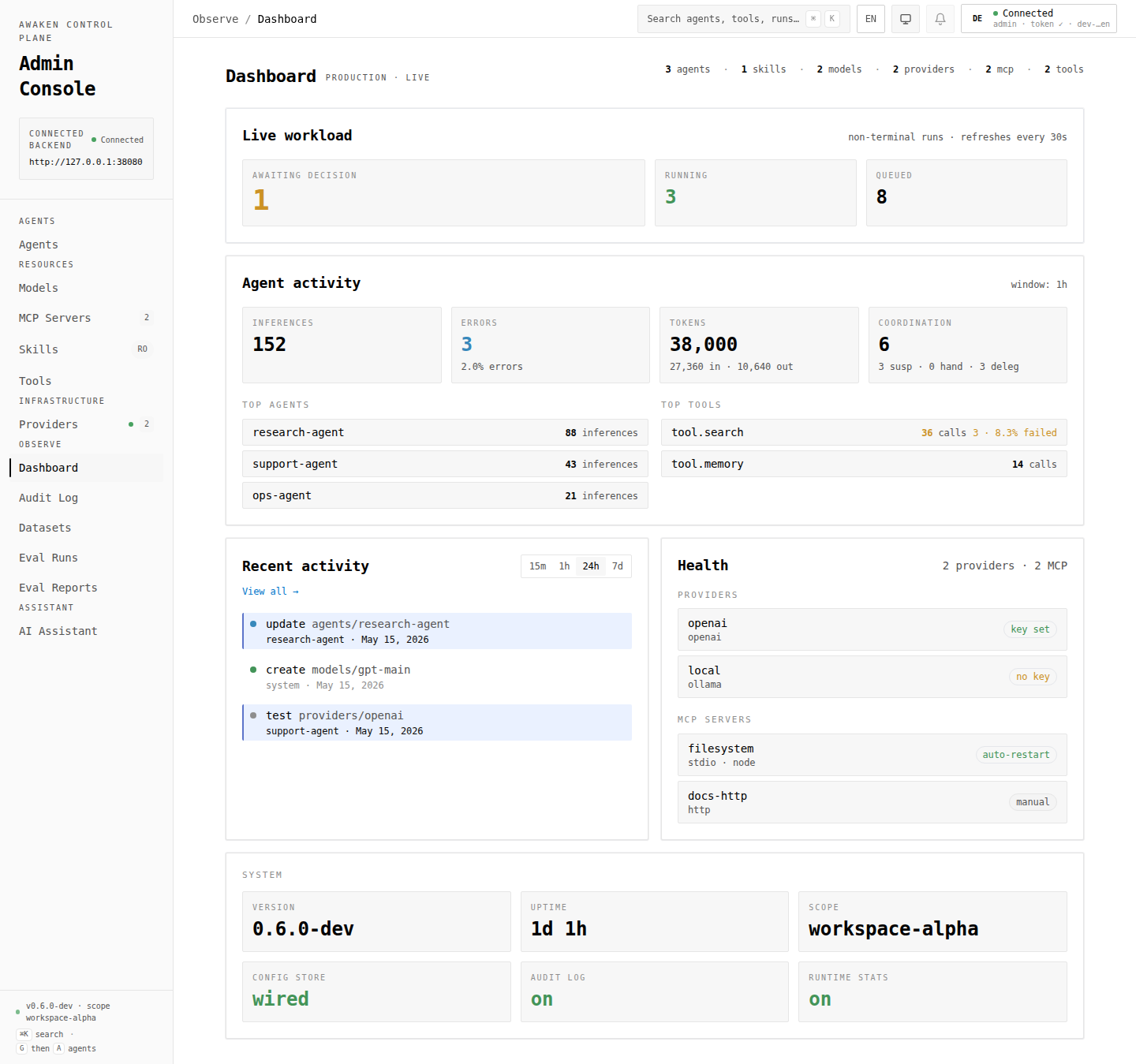
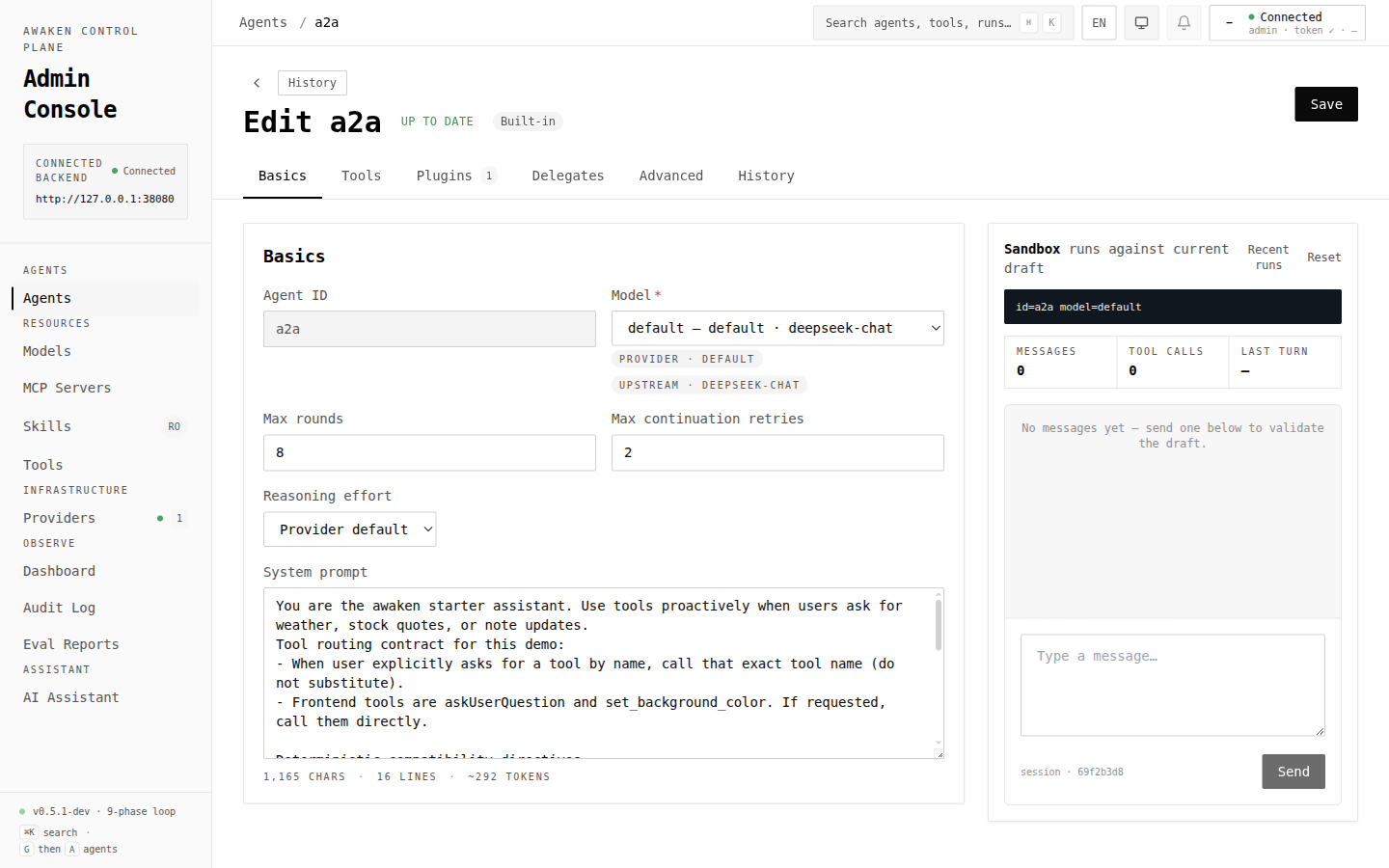
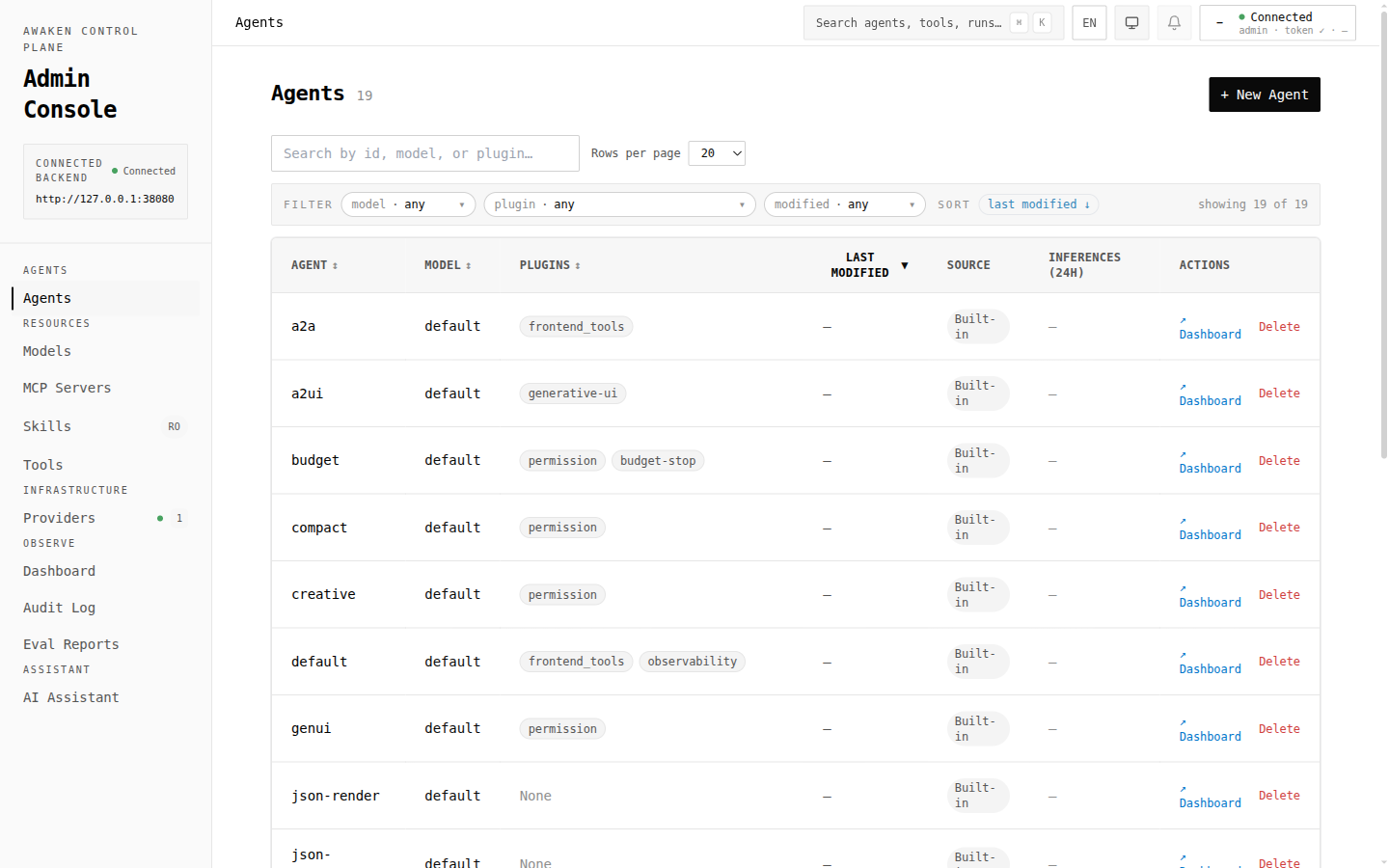
Section titled “Visual tour”The console is a thin browser control plane over the running server. The screenshots below show the current high-value workflow: inspect system state, edit an agent, and compare agent catalog health before running traffic.
Navigate the workspace
Section titled “Navigate the workspace”The left sidebar groups every screen by intent:
| Group | What lives here |
|---|---|
| Agents | Agents — create/edit agent specs and open per-agent dashboards. |
| Resources | MCP Servers, Skills, Tools — runtime dependencies and discovered capabilities. |
| Infrastructure | Providers and Models — upstream connectivity plus stable model ids and capability metadata. |
| Observe | Dashboard, Audit Log, Datasets, Eval Runs, Eval Reports — operational views and evaluation records. |
Use the breadcrumb in the topbar to confirm which group you are in and to move back up to the parent page. The core workflows below are all available through the visible navigation and editor controls.
The Admin Assistant is a global floating bubble, not a sidebar destination. It activates after at least one provider-backed model is configured; until then it opens with setup links for Providers and Models.
Inspect the system
Section titled “Inspect the system”Open the Dashboard (it’s the default landing page). Key panels:
- Stat cards — counts of agents, skills, models, providers, MCP
servers, and published tools, taken from
/v1/capabilities. Click a card to drill into the corresponding list. - Health — providers (key set / no key) and MCP servers (auto-restart / manual). This tells you which providers will fail at request time because no key is configured.
- Recent activity — last 8 audit events, if the audit log is enabled on the server. If you see a yellow “Audit log is disabled” notice, enable it on the server (see Enable the audit log).
- System — server version, current
scope_id, uptime, and which optional subsystems (config store, audit log, runtime stats) are wired in.
Edit an agent
Section titled “Edit an agent”- Click Agents in the sidebar.
- Use the filter chips to narrow by
model,plugin, ormodified range. The “Inferences” column shows real call counts over theRuntimeStatsRegistrywindow (configured on the server) when the observability registry is on (see Enable runtime stats). - Click a row to open the editor.
- The editor uses visible tabs:
- Basics — agent ID (read-only after creation), model, max rounds, reasoning effort, system prompt.
- Tools — choose between “All tools” and “Custom selection”. Custom mode reveals a search box plus source filter tabs (All / Built-in / Plugin / MCP) and per-group select-all/clear actions. The same UI repeats for “Excluded Tools”.
- Plugins — toggle plugins on/off. The badge on the tab shows the enabled count.
- Delegates — pick which other agents this one can hand off to. Selected delegates take the agent-tint (purple) treatment used across both Awaken and Oversight.
- Advanced — raw JSON preview of the spec.
- History — audit events for this resource. Each row has a Restore action that rolls the agent back to the version recorded by that event (see Restore a previous version).
- As soon as you change anything, the bottom save bar appears with two
buttons:
- Validate — sends your draft to
POST /v1/config/agents/validate, which runs the same prepare + schema check as a real save but does not persist or apply. Use it to confirm your edits parse before publishing. - Save (or Save & Publish for new agents) — persists and applies. The runtime swaps to the new spec on the next request.
- Validate — sends your draft to
- The right column is a draft-preview chat backed by
POST /v1/ai-sdk/agent-previews/runs. You can talk to your draft before saving it; text and attached image/audio/video/PDF/text files are sent as AI SDK message parts against the unsaved spec. - After saving, the Frontend integration card appears below the sandbox. It shows the agent-scoped AI SDK and AG-UI routes and links to the frontend, protocol, and HTTP API docs.
Test a provider
Section titled “Test a provider”The Providers list has a per-row Test button:
- Click Test next to the provider id.
- The console calls
POST /v1/providers/:id/test. - A toast reports either
OK · <latency>msor the backend error verbatim — for example,unsupported provider adapter: scripted.
Use this before publishing a new model config to confirm the credentials and adapter actually reach the upstream.
Restart an MCP server
Section titled “Restart an MCP server”- Open MCP Servers and click an existing server to edit it.
- Scroll to Live Status. The four cells show: connection state, handshake result, tool count, and either restart-policy summary or “Failures (since last ok)” with a warn/error tone if the server is currently misbehaving.
- The relative timestamps below the cells (
last attempt,last success) tell you whether the manager is actively retrying. - Click Restart to trigger
POST /v1/mcp-servers/:id/restart. The button is disabled while a restart is in flight; an auditrestartevent is emitted on success.
Restore a previous version
Section titled “Restore a previous version”Awaken’s audit log is also a version history.
- Open any resource editor (agent / model / provider / MCP server).
- Switch to the History tab.
- Each event row shows the actor, timestamp, and a one-line description of what changed. Click a row to expand the before/after diff.
- Click Restore this version on the row you want to roll back to. The console previews the JSON diff between current and target and asks for confirmation.
- On confirm, the console calls
POST /v1/config/:ns/:id/restorewith the event id. Restore is an editing-store operation: the server validates the restored payload and writes it toConfigStore, but it does not hot-swap the runtime registry. This keeps rollback review separate from runtime promotion. - To make a restored payload active for new runs, publish it through a normal
config write after review, for example
PUT /v1/config/:ns/:idwith the restored body. That write runs the standard validate + apply pipeline and emits its own audit event. The restore event still recordsrestored_from = <event-id>so the rollback source remains auditable.
Browse the audit log
Section titled “Browse the audit log”Open Audit Log for a global view across every resource:
- Since / Until filter for time range.
- Action filter (create / update / delete / restart / publish / restore).
- Resource filter — substring match on
<namespace>/<id>. - Actor filter — accepts the SHA-256 prefix shown on each row.
Click a row to open a side panel with the full event JSON, before/after diff, and (when applicable) the Restore button.
If you see an empty page that says the filter form but never any rows, the audit log is probably disabled — see below.
Enable optional subsystems
Section titled “Enable optional subsystems”The console honestly degrades when the runtime hasn’t opted into these, but you’ll get a much better experience with them on.
Enable the audit log
Section titled “Enable the audit log”Wire an audit logger into ServerState; retention is configured separately from
AdminApiConfig to keep that security struct source-compatible with 0.4.0:
use awaken_server::app::AuditLogConfig;
let state = state    .with_audit_log_config(AuditLogConfig {        retention_days: 90,        ..AuditLogConfig::default()    })    .with_audit_log_from_config();
Without this:
- Dashboard “Recent activity” shows the disabled notice.
- Audit Log page renders the filters but always returns 0 rows.
- Editor “History” tab is empty.
Enable runtime stats
Section titled “Enable runtime stats”Wire the observability plugin into your ServerState:
use awaken_ext_observability::{ObservabilityPlugin, RuntimeStatsRegistry};
let registry = Arc::new(RuntimeStatsRegistry::new());let observability = ObservabilityPlugin::new() .with_sink(SharedRegistrySink(Arc::clone(®istry)));
let state = ServerState::new(/* ... */) .with_runtime_stats(registry);
let runtime = AgentRuntimeBuilder::default() .with_plugin("observability", Arc::new(observability)) .build();Without this:
- Agents list shows a banner and
n/acells in the “Inferences” column. - Per-agent dashboard cannot render its latency histogram.
See Enable Observability for the full recipe.
What the console does NOT cover (use REST instead)
Section titled “What the console does NOT cover (use REST instead)”The console focuses on configuration: agents, models, providers, MCP servers, tools, skills (read-only), audit log, and runtime stats. Live execution surfaces are intentionally REST-only today:
- Threads & runs — list, create, cancel, inspect messages.
- HITL decisions — submit resume/cancel for suspended tool calls.
- Mailbox — peek/push inter-agent dispatches.
- Skill CRUD — the console lists skills but does not yet edit them.
- Config diagnostics —
GET /v1/config/diagnosticsreturns a registry-wide validation report that no screen renders yet.
Drive these from curl or your own scripts with the same admin bearer
token. See the
REST-only features matrix
for the exact endpoint list, and the
HTTP API reference for request shapes.
Switch theme
Section titled “Switch theme”Use the topbar theme control to choose light, dark, or system mode. The choice
is persisted locally and maps to data-theme, so the same --aw-* design
tokens drive the console and docs.
Troubleshooting
Section titled “Troubleshooting”| Symptom | Likely cause | Fix |
|---|---|---|
| Topbar pill says Token missing or Token rejected | Bearer token absent or wrong | Click the pill, paste the token configured on the server |
| Topbar pill says Backend unreachable | Server not listening or wrong URL | Confirm the server is running on BACKEND_URL. The default is http://127.0.0.1:38080. Override with VITE_BACKEND_URL at build time |
Console shows 503 errors but pages still load | An optional subsystem (audit / runtime stats) is off | See Enable optional subsystems |
| Save fails with “config management API not enabled” | The server has no ConfigStore wired | Embedder must call ServerState::with_config_store(...) |
| Provider Test always returns “unsupported adapter” | The provider uses the scripted adapter (no upstream to probe) | Expected; only real adapters have a meaningful test path |
| Sidebar nav health dot stays neutral | Health badges are derived from list payloads only — full per-server probes are intentionally not made on every page load | Open the resource detail to see live /status |